Plan rides, discover events, join clubs, and connect with riders near you — here's everything you need to get started.
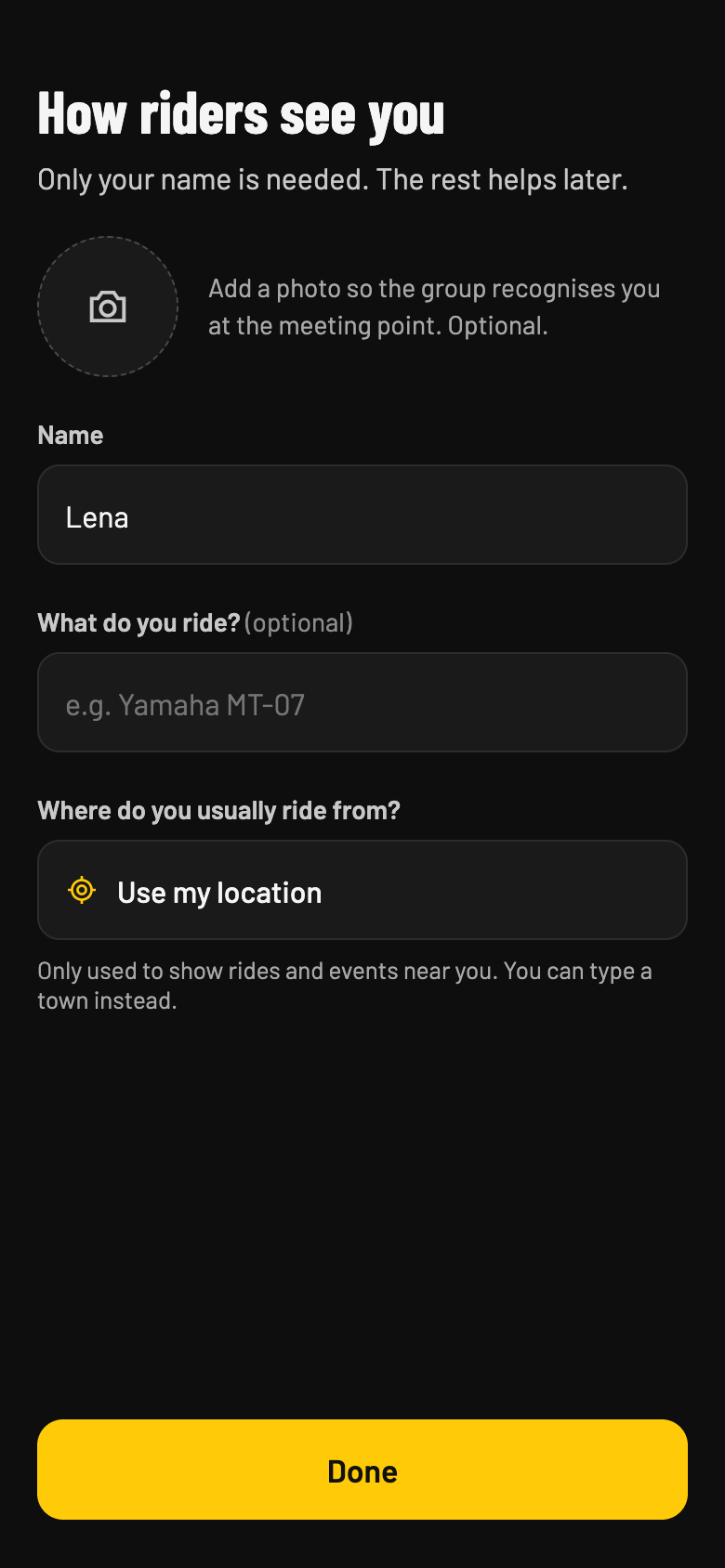
Your profile
Getting started
Welcome to BikeyZ
BikeyZ works with or without a full account. Jump in with Quick Join using just your email, or sign up to create rides, join clubs, and unlock the full experience.
🚀
Quick Join — no account
Open any shared ride link and join with an email code. No app install, no password.
👤
Free Buddy account
Sign in with Apple, Google or an email code. Browse and join rides near you, connect with other riders.
🏍
Rider or Roadmaster
Upgrade to create rides and events, run your own club, and unlock advanced search and planning.
Tip: Only your name is required to set up. Add your bike and location when you're ready — it helps riders know who they're meeting at the start.
Discover
Finding Rides Near You
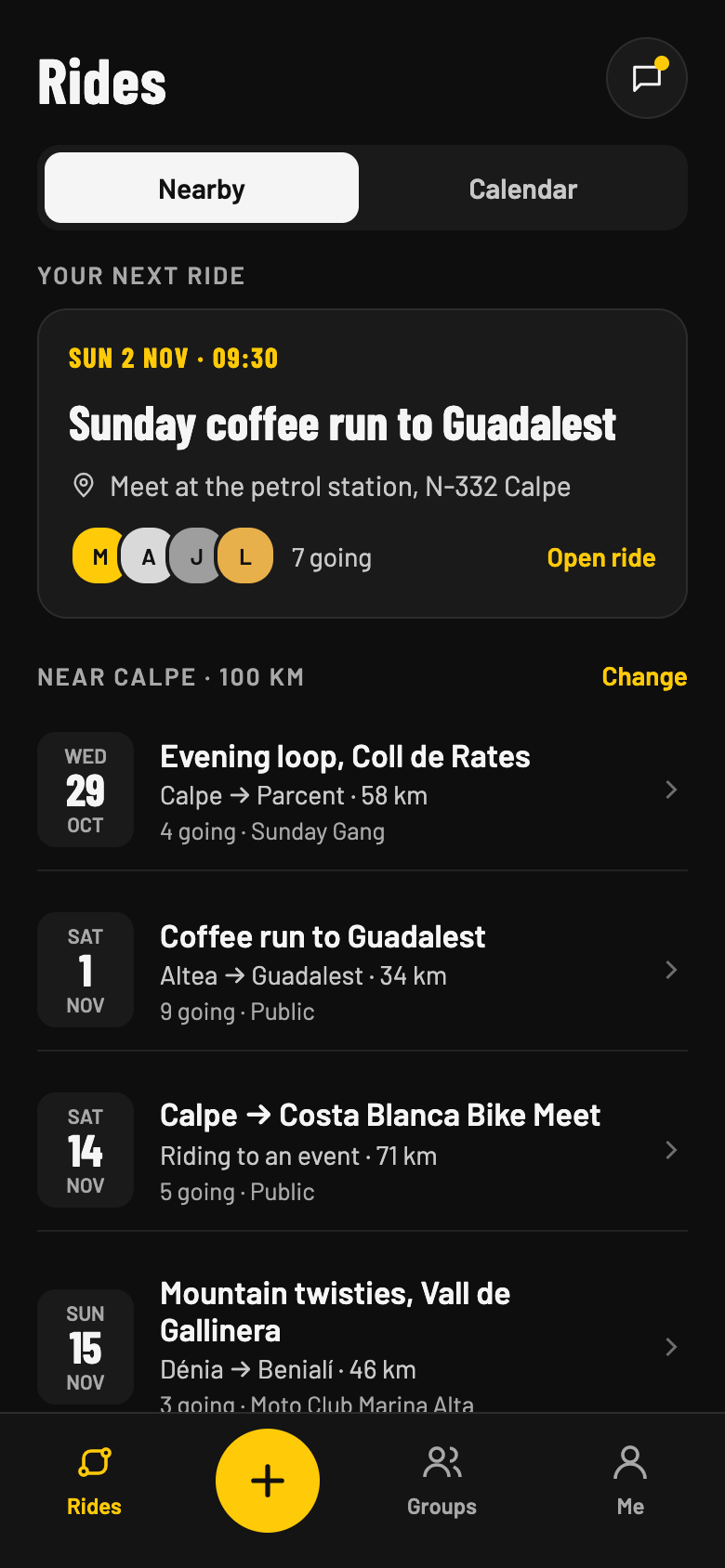
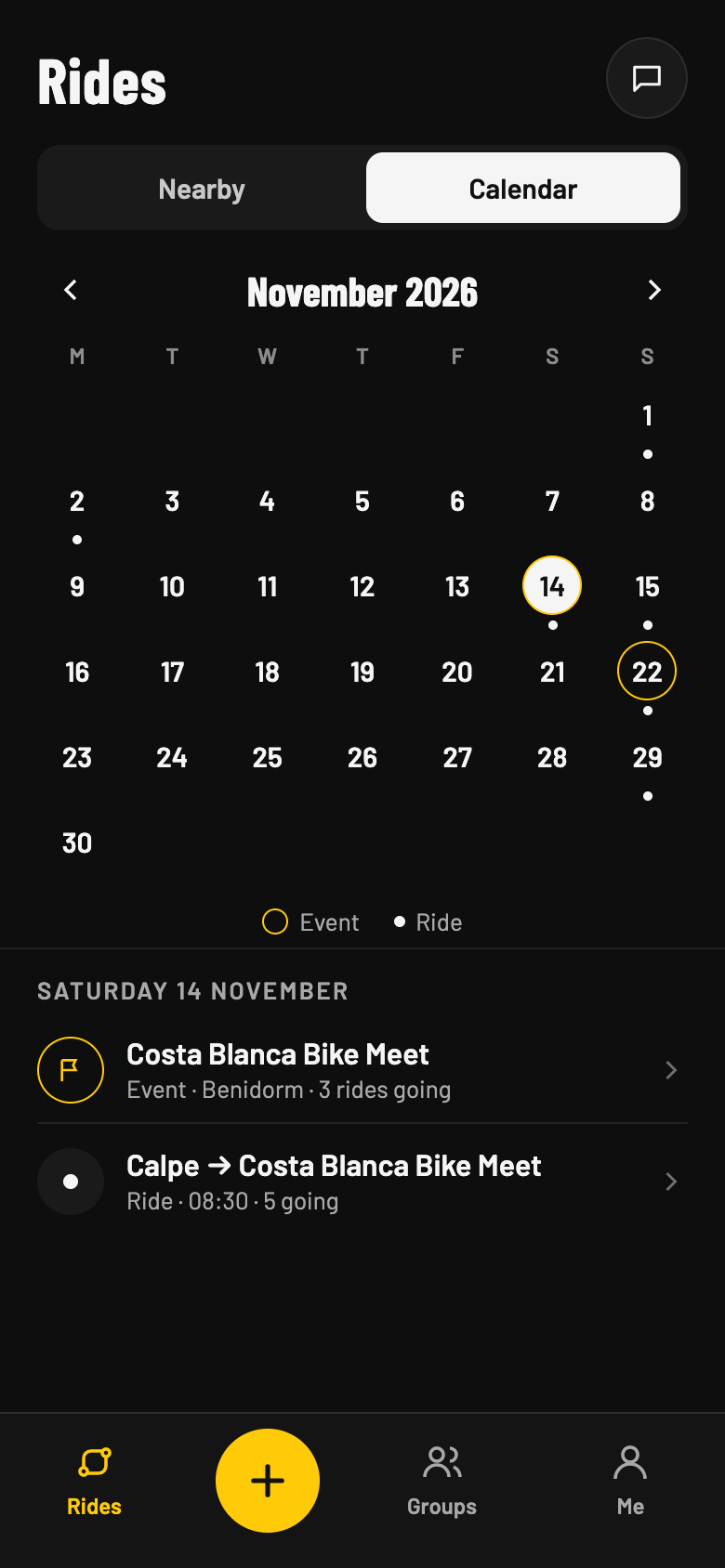
The Rides tab shows planned rides near you and your upcoming RSVPs. Toggle between Nearby (by distance) and Calendar (by date) to find what's coming up.
Nearby rides
Calendar view
1
Open the Rides tab
Tap Rides in the bottom navigation. If you've already joined a ride, it appears as "Your next ride" at the top.
2
Browse Nearby or Calendar
Nearby shows rides sorted by distance from you. Calendar shows them on a month view — dots mark days with rides or events. Tap a day to see what's on.
3
Open a ride to join
Tap any ride to see the route, meeting point, who's going, and the ride chat. Tap the join button to add yourself to the list.
No rides near you? When the Nearby view is empty, it shows upcoming events in your area. Tap "Ride to it" to start a ride going to that event — your meeting point and time are pre-filled.
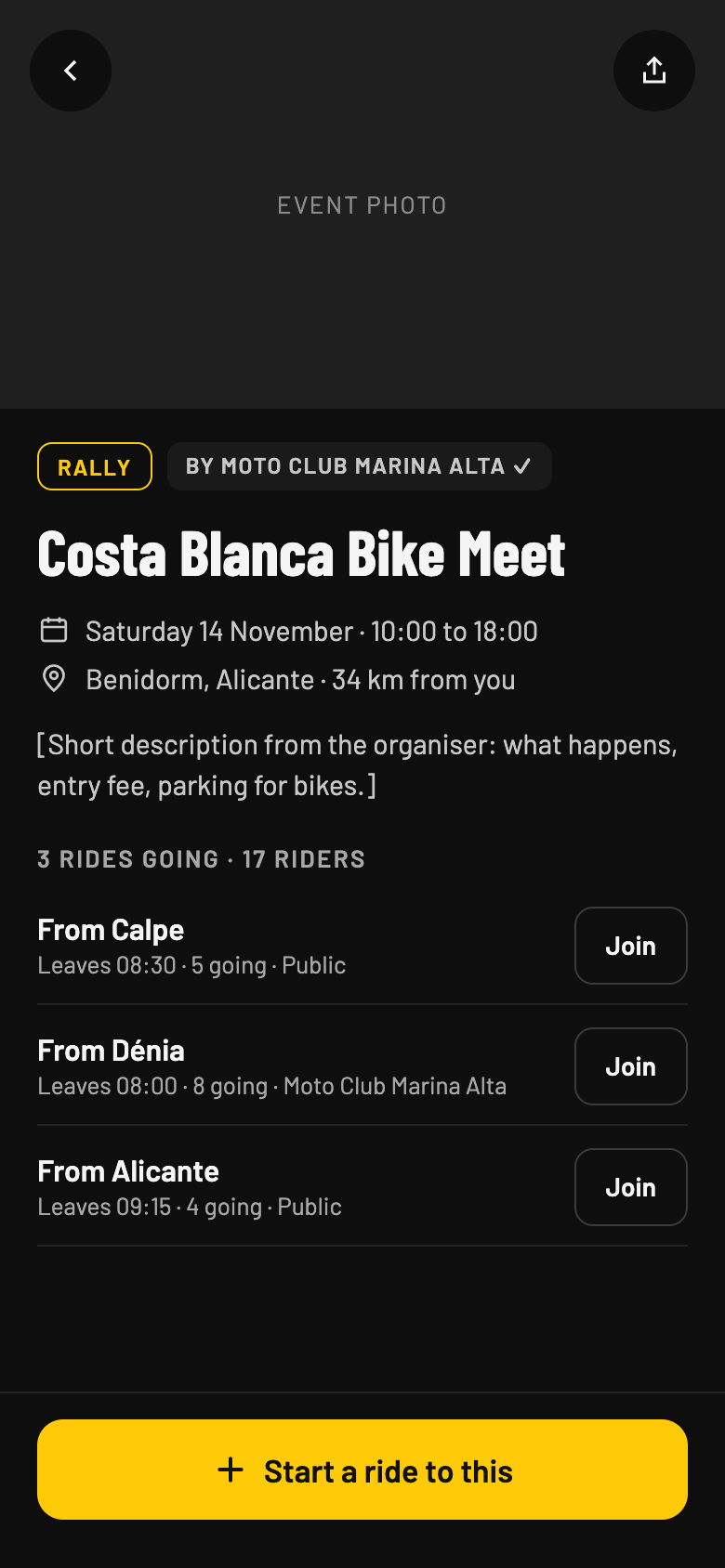
Event page
Events
Rallies, Track Days & More
Events are organised gatherings — rallies, track days, charity rides, meetups and more. The Events tab shows what's happening near you. From any event page you can join an existing ride going there, or start your own.
1
Find an event
Tap Events in the navigation. Filter by country, type (Rally, Track Day, Show…) and date to find what interests you.
2
See rides going there
An event page shows all the rides already planned to that event from different locations. Join one that starts near you.
3
Start a ride to this event
Tap Start a ride to this at the bottom. The event is pre-filled as your destination — just set your meeting point and time.
Plan
Creating a Ride
Tap the + button anywhere in the app to start a new ride. Three steps: where and when, your route, then who's invited. The link is ready to share the moment you publish.
Step 1
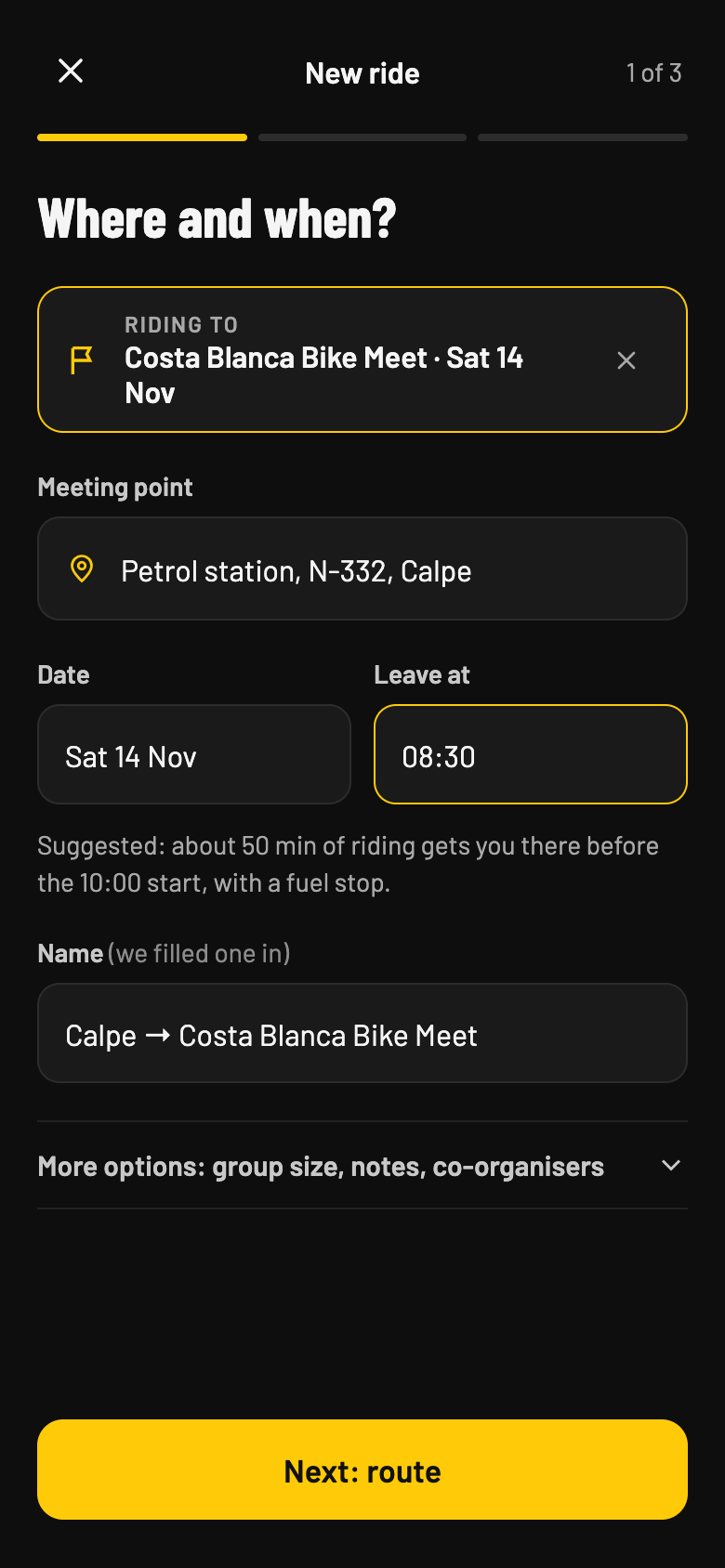
Set destination, meeting point, date and departure time
Step 2
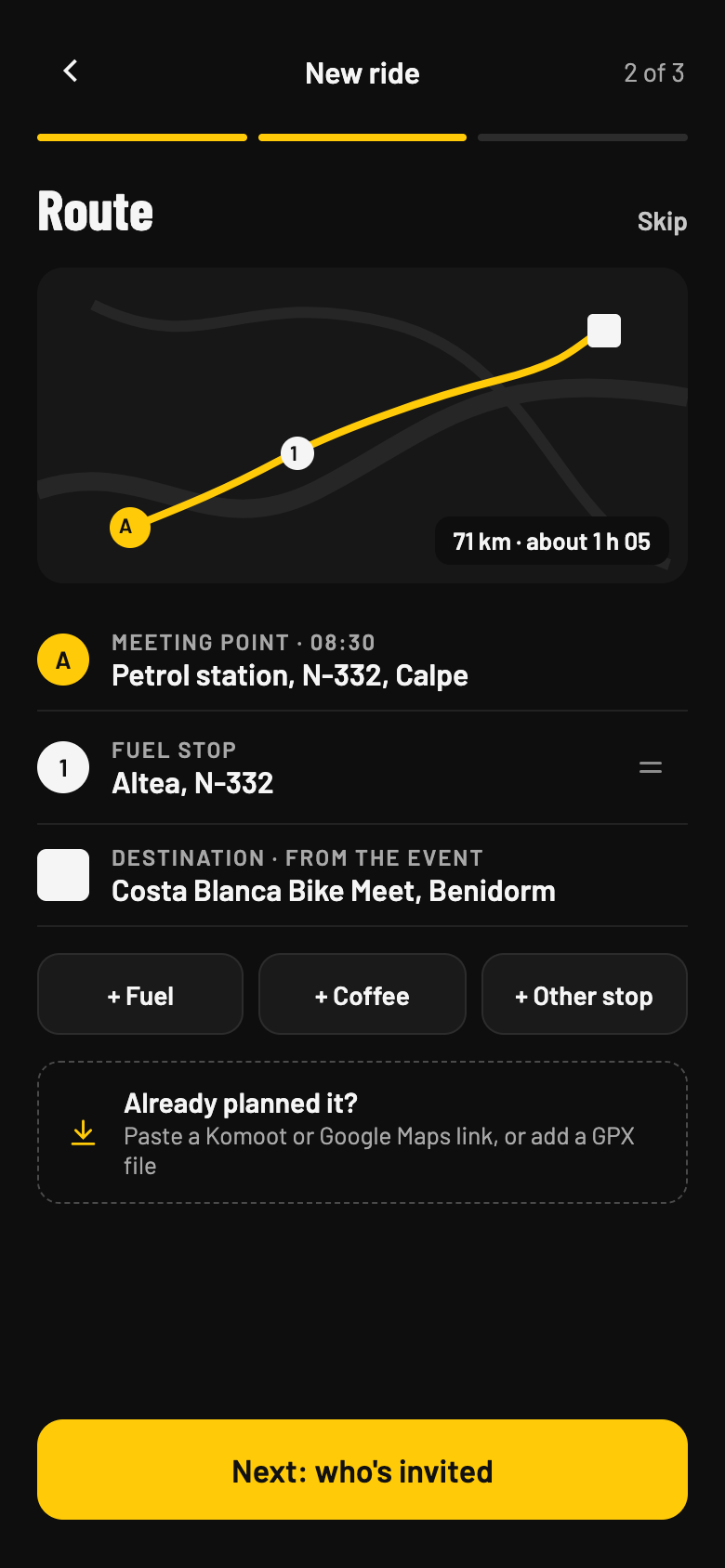
Add waypoints (fuel, coffee, stops) or paste a Komoot / Maps link
Step 3
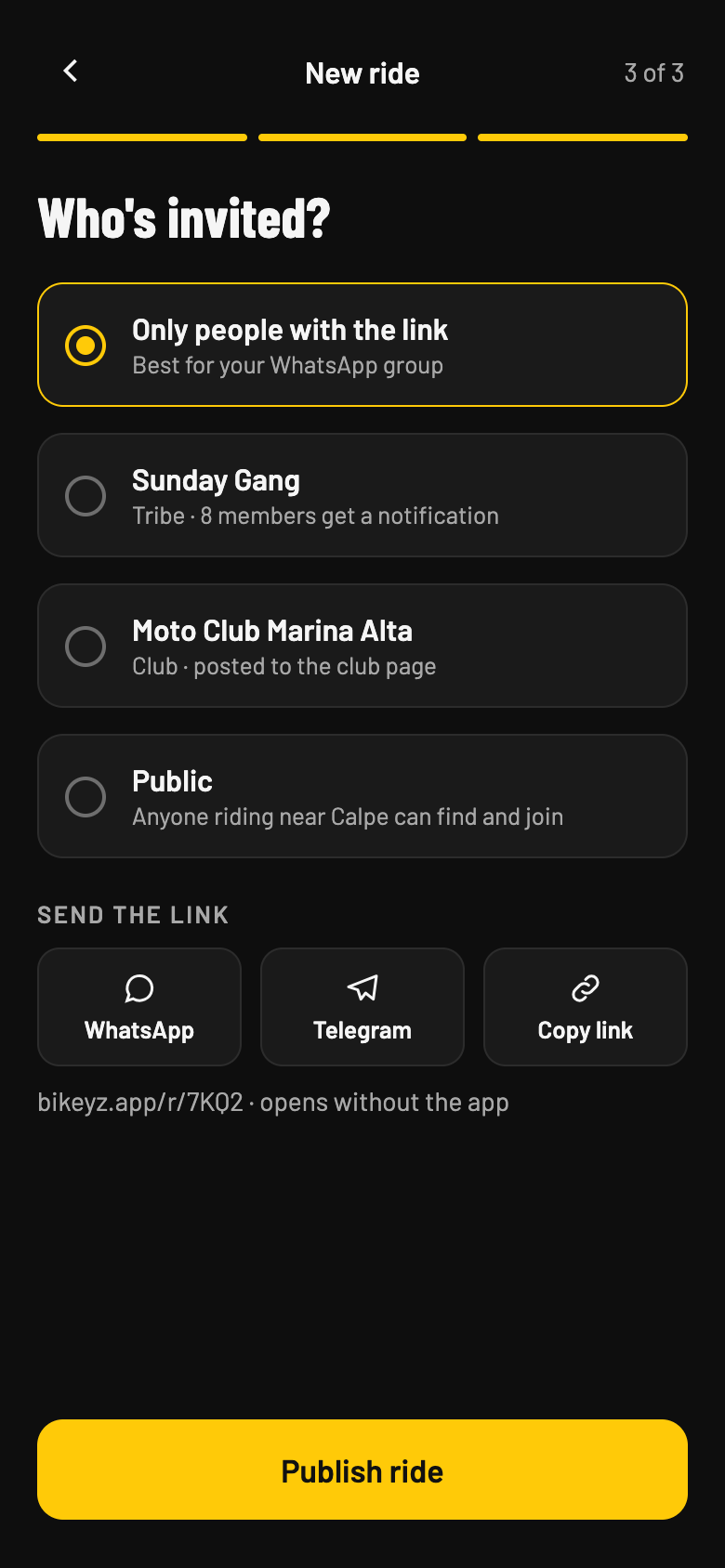
Choose visibility — link only, tribe, club, or public — then share
1
Where and when
Set your destination (or link an event), the meeting point, date and departure time. BikeyZ suggests a leave time for event rides based on distance and typical riding pace.
2
Route (optional, skip if you like)
Add fuel or coffee stops to the waypoint list. Paste a Komoot or Google Maps link, or upload a GPX file so riders can follow your planned track.
3
Who's invited
Choose Link only (WhatsApp group), a tribe, your club, or Public for anyone riding nearby. The share options — WhatsApp, Telegram, or copy link — appear right here. Tap to send before you even leave the page.
Tip: You can edit the ride at any time after publishing — add waypoints, update the meeting point, or change the departure time. Everyone who joined gets notified of changes.
Join
Quick Join — Joining from a Link
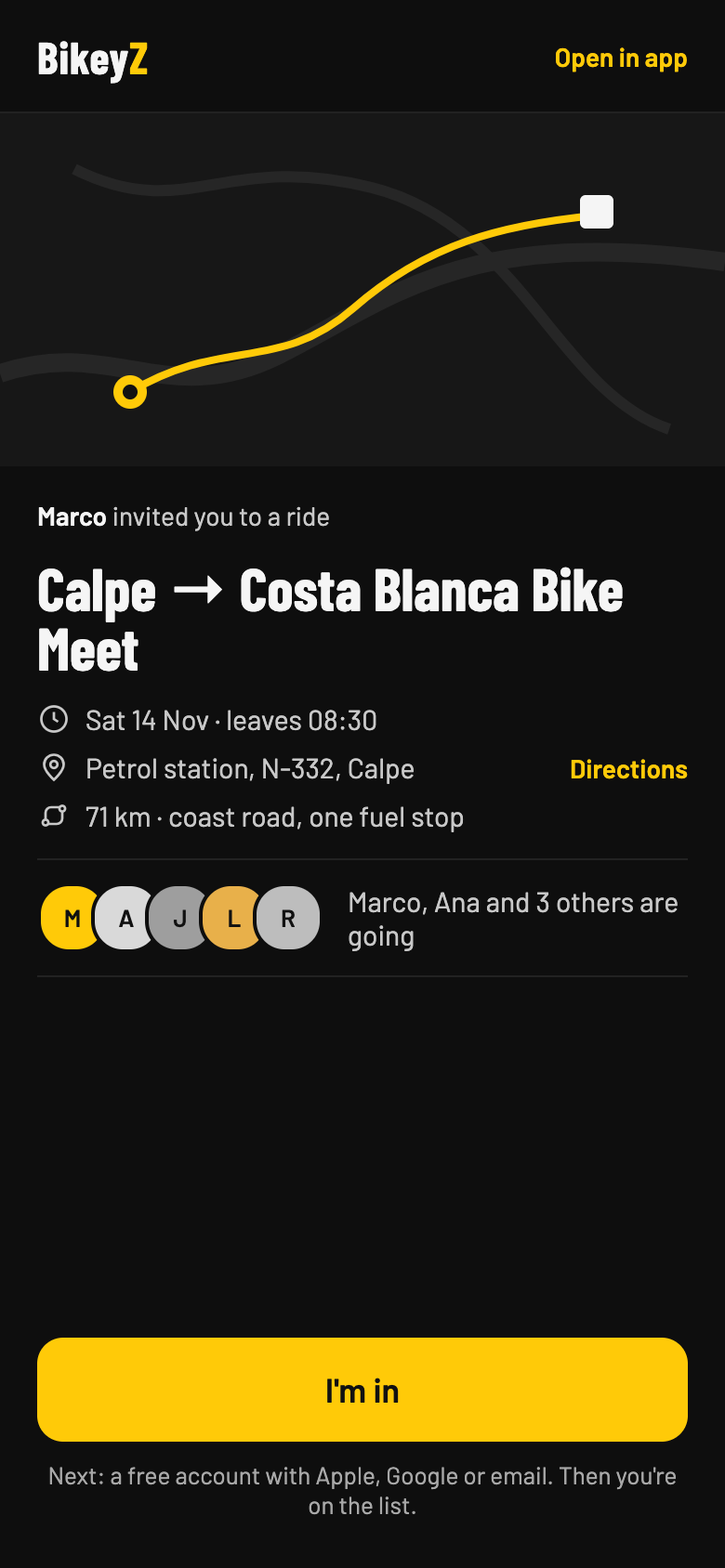
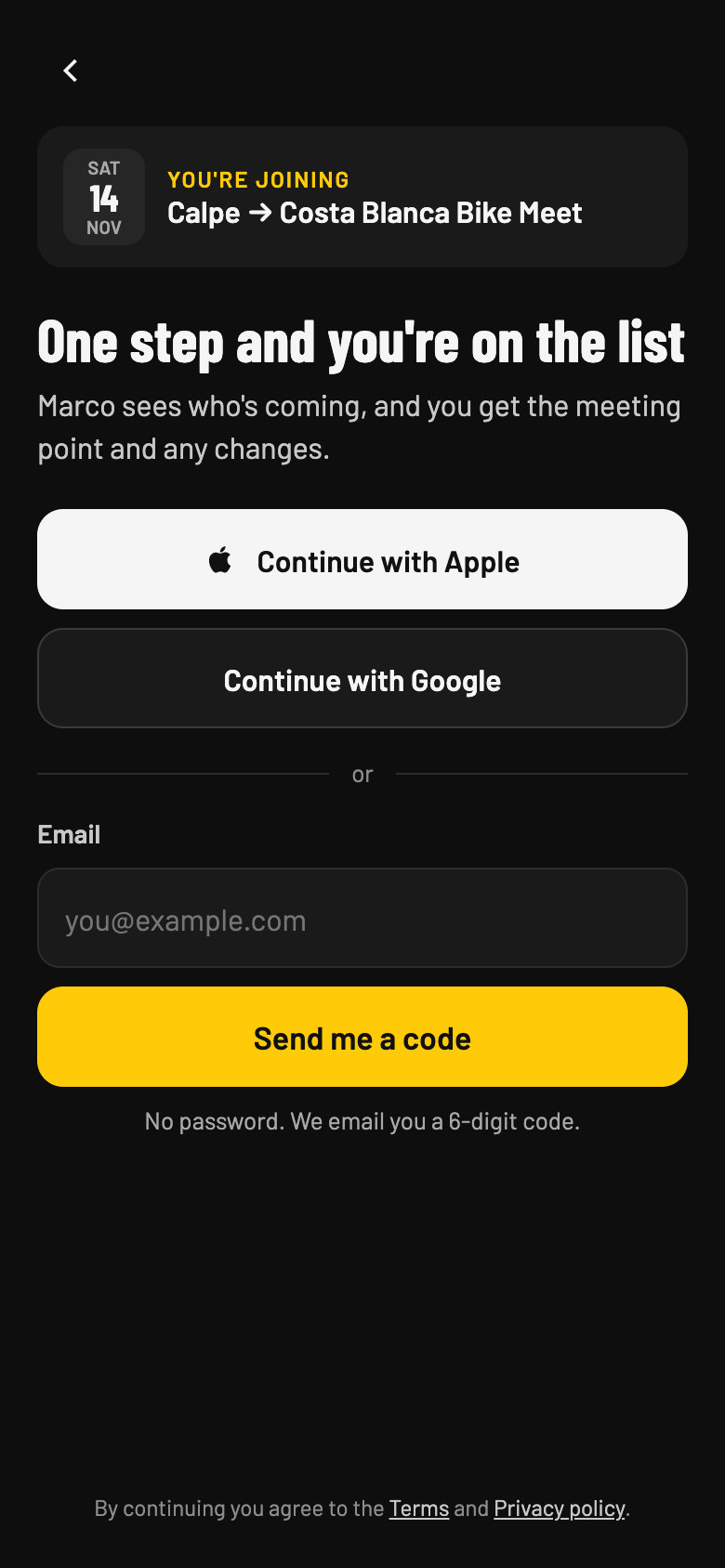
When someone sends you a BikeyZ ride link, you join with one tap. No app install, no password. The organiser sees you're coming, and you get the meeting point and any updates automatically.
1 — Open the link
See the ride, meeting point and who's going. Tap "I'm in".
2 — Sign in
Use Apple, Google, or enter your email to get a code.
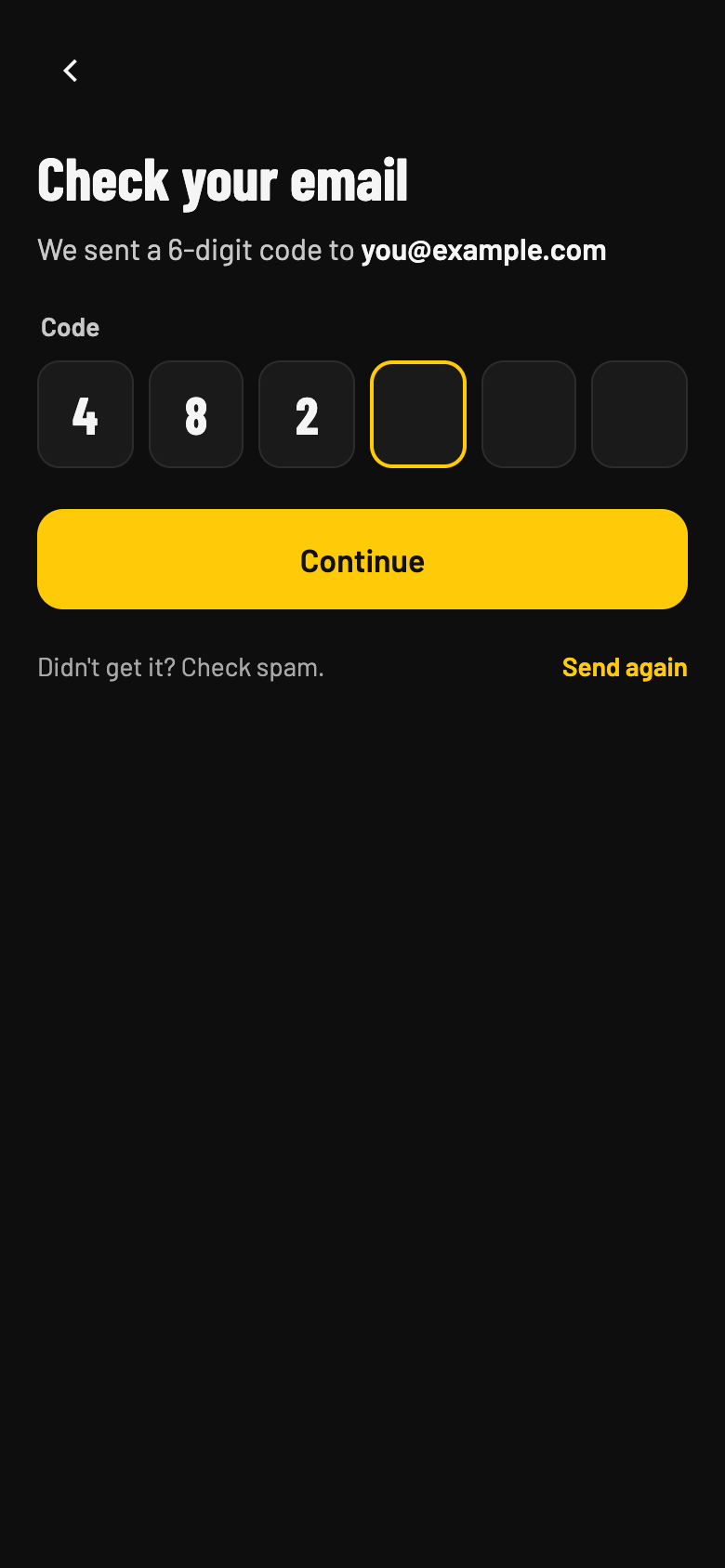
3 — Enter the code
A 6-digit code is sent to your email — valid for 10 minutes.
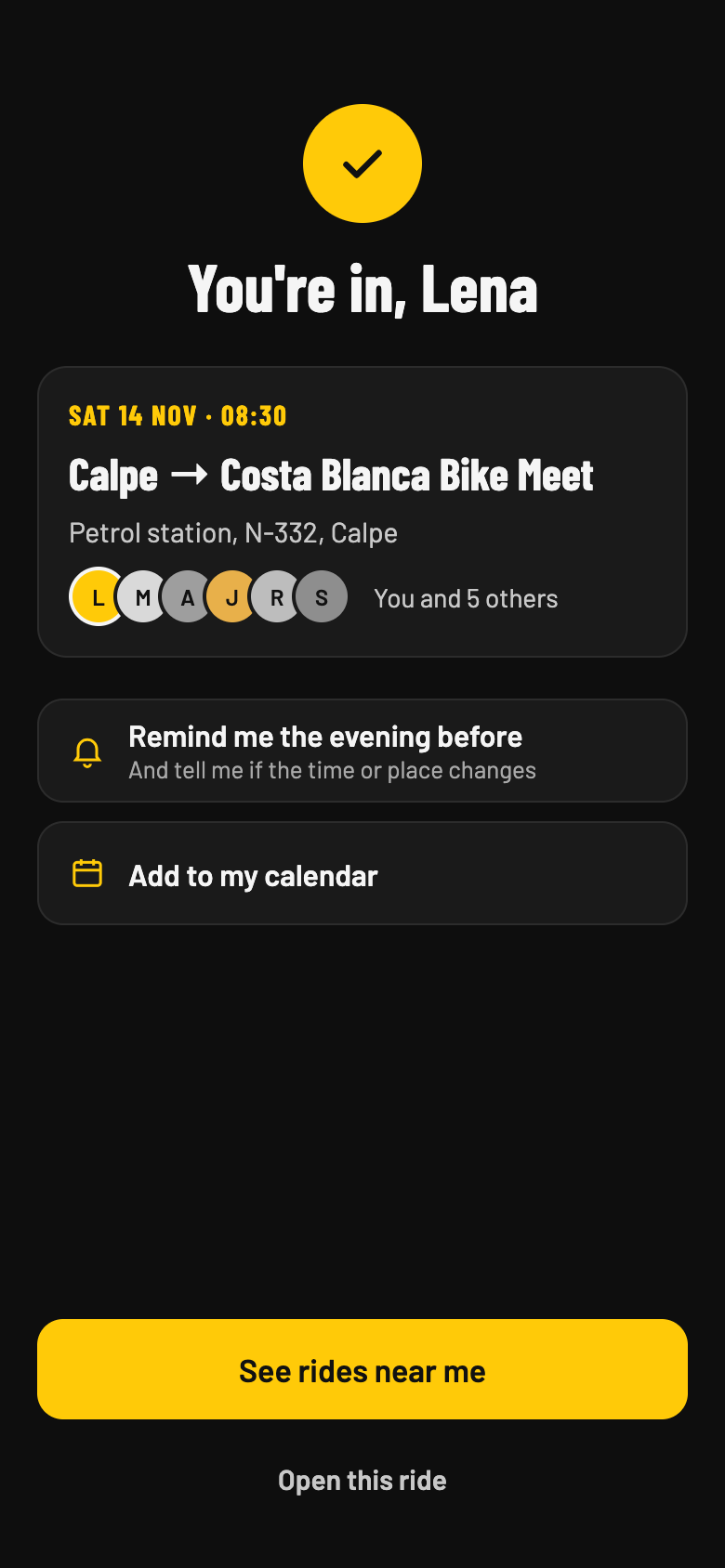
4 — You're in!
You're on the list. Enable the reminder to get an alert the evening before.
Already have an account? Tap "Continue with Apple" or "Continue with Google" on step 2 — your RSVP links to your profile instantly, no code needed.
On the day
Ride day
On the Day
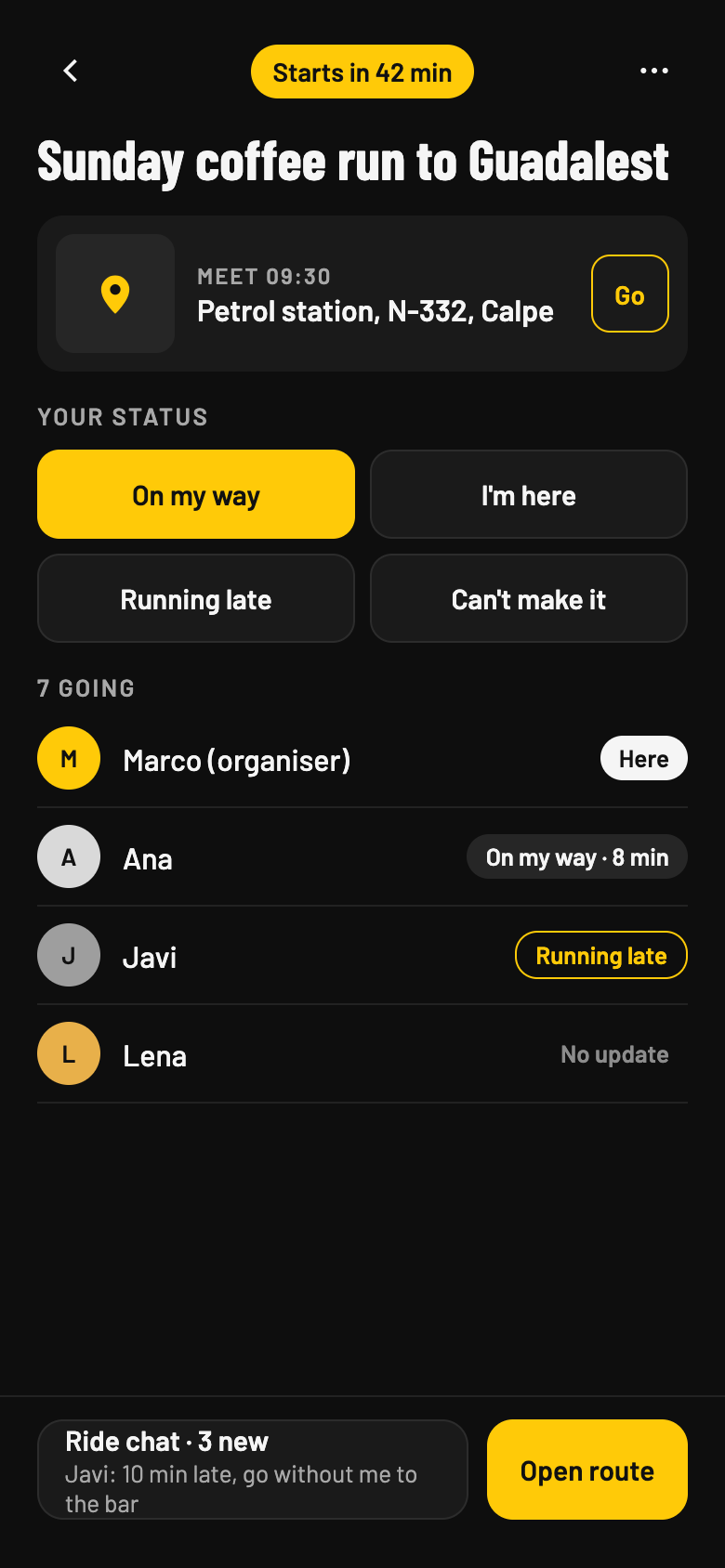
When ride day arrives, the ride page turns into a live status board. Everyone can see who's on their way, who's already at the meeting point, and who's running late — without needing a group chat.
1
Open the ride
Open BikeyZ and tap your ride from the top of the Rides tab. The countdown shows how long until you leave.
2
Update your status
Tap On my way, I'm here, Running late or Can't make it. The whole group sees it instantly.
3
Navigate to the meeting point
Tap Go next to the meeting point to open it in your navigation app. The ride chat stays open in BikeyZ for last-minute coordination.
4
Open Route
Tap Open route at the bottom to get the full route in your navigation app, including all waypoints in sequence.
Groups tab
Community
Clubs & Tribes
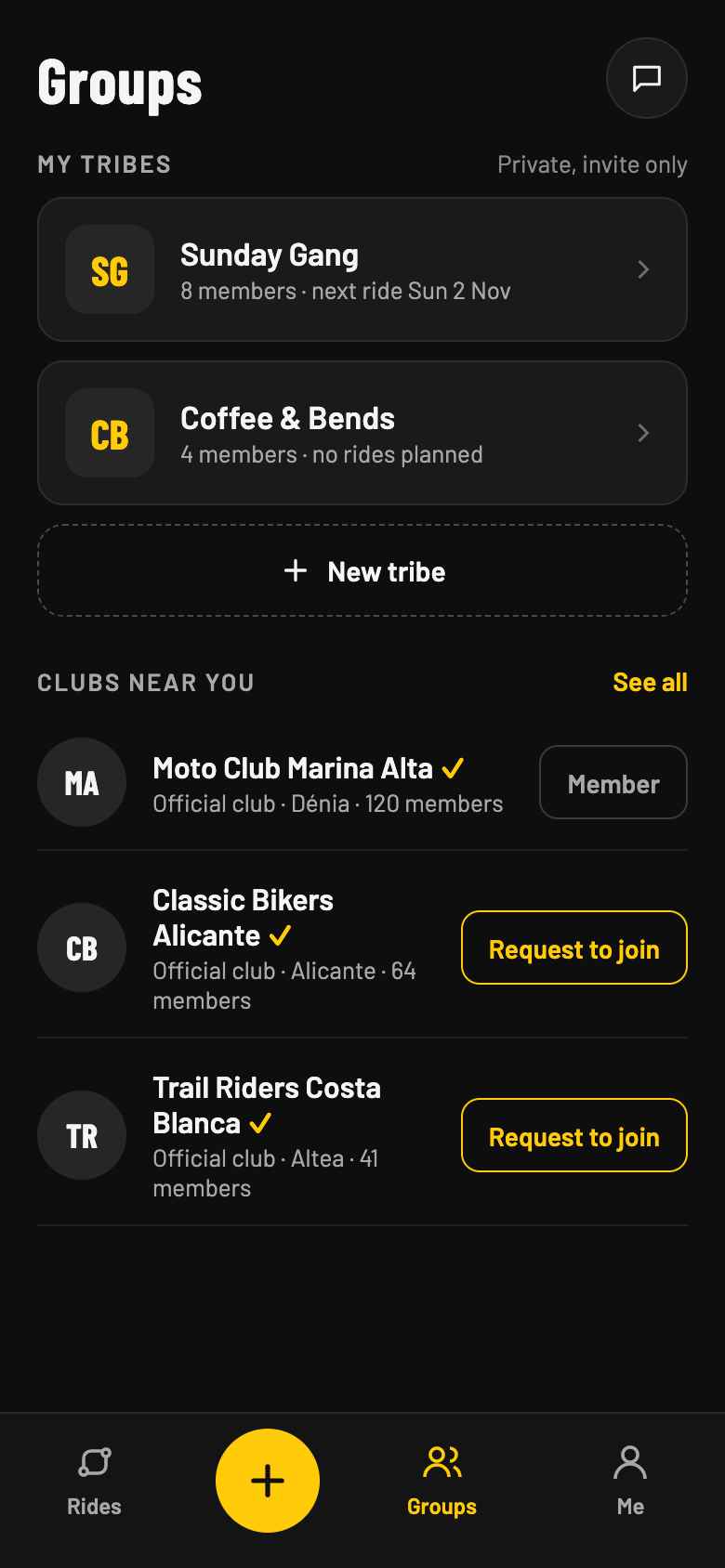
The Groups tab is home to two types of riding community. Tribes are your private squads — invite-only and invisible to everyone else. Clubs are the public-facing organisations that appear in search, run events, and have their own membership pages.
Tribes
1
Create a tribe
Tap New tribe. Give it a name — it's private and invite-only by default.
2
Invite your squad
Share the tribe link or QR code. Members join in one tap, no approval needed.
3
Post tribe-only rides
When creating a ride, pick your tribe on the "Who's invited?" screen. Only tribe members see it and get notified.
Clubs
1
Find clubs near you
Tap See all under Clubs. Search by name, biker type or location.
2
Request to join
Tap Request to join. You're a Candidate until a club admin approves your request.
3
Create your own club
Tap + on the Clubs tab, set a name, biker category and location, then invite your first members.
Good to know
Tips & Shortcuts
🔔
Evening-before reminder
Join any ride and BikeyZ sends a push notification at 19:00 the evening before it starts. Enable it from the confirmation screen.
💬
Ride chat
Every ride has an encrypted group chat. Tap the chat bubble icon to coordinate with the group — no phone numbers needed.
📅
Add to your calendar
After joining, tap Add to my calendar on the confirmation screen to get the meeting point and time straight into your phone's calendar.
🔑
Back up your security keys
Ride and direct messages are end-to-end encrypted. Back up your keys in Me → Security so you can restore them if you reinstall the app.
📍
Change your location
Not seeing rides near you? Tap Change next to your location on the Rides tab to search a different town or city.
👤
Your public profile
Fill in your bike and rider style in Me → Edit profile. Toggle phone and email visibility under Me → Privacy so the community sees what you want.